Wednesday, 29 June 2016

Workflow status query


-- SQL query to find out Workflow process status with the whole

SELECT execution_time,
       to_char(ias.begin_date,
               'DD-MON-RR HH24:MI:SS') begin_date,
       ap.display_name || '/' || ac.display_name activity,
       ias.activity_status status,
       ias.activity_result_code RESULT,
       ias.assigned_user ass_user
  FROM wf_item_activity_statuses ias,
       wf_process_activities     pa,
       wf_activities_vl          ac,
       wf_activities_vl          ap,
       wf_items                  i
 WHERE ias.item_type = '&item_type'
   AND ias.item_key = '&item_key'
   AND ias.process_activity = pa.instance_id
   AND pa.activity_name = ac.name
   AND pa.activity_item_type = ac.item_type
   AND pa.process_name = ap.name
   AND pa.process_item_type = ap.item_type
   AND pa.process_version = ap.version
   AND i.item_type = '&item_type'
   AND i.item_key = ias.item_key
   AND i.begin_date >= ac.begin_date
   AND i.begin_date < nvl(ac.end_date,
                          i.begin_date + 1)
UNION ALL
SELECT execution_time,
       to_char(ias.begin_date,
               'DD-MON-RR HH24:MI:SS') begin_date,
       ap.display_name || '/' || ac.display_name activity,
       ias.activity_status status,
       ias.activity_result_code RESULT,
       ias.assigned_user ass_user
  FROM wf_item_activity_statuses_h ias,
       wf_process_activities       pa,
       wf_activities_vl            ac,
       wf_activities_vl            ap,
       wf_items                    i
 WHERE ias.item_type = '&item_type'
   AND ias.item_key = '&item_key'
   AND ias.process_activity = pa.instance_id
   AND pa.activity_name = ac.name
   AND pa.activity_item_type = ac.item_type
   AND pa.process_name = ap.name
   AND pa.process_item_type = ap.item_type
   AND pa.process_version = ap.version
   AND i.item_type = '&item_type'
   AND i.item_key = ias.item_key
   AND i.begin_date >= ac.begin_date
   AND i.begin_date < nvl(ac.end_date,
                          i.begin_date + 1)
 ORDER BY 2,
          1;
       
       
--- list of all errors for specific item key

 SELECT ac.display_name          activity,
       ias.activity_result_code RESULT,
       ias.error_name           error_name,
       ias.error_message        error_message,
       ias.error_stack          error_stack
  FROM wf_item_activity_statuses ias,
       wf_process_activities     pa,
       wf_activities_vl          ac,
       wf_activities_vl          ap,
       wf_items                  i
 WHERE ias.item_type = '&item_type'
   AND ias.item_key = '&item_key'
   AND ias.activity_status = 'ERROR'
   AND ias.process_activity = pa.instance_id
   AND pa.activity_name = ac.name
   AND pa.activity_item_type = ac.item_type
   AND pa.process_name = ap.name
   AND pa.process_item_type = ap.item_type
   AND pa.process_version = ap.version
   AND i.item_type = '&item_type'
   AND i.item_key = ias.item_key
   AND i.begin_date >= ac.begin_date
   AND i.begin_date < nvl(ac.end_date,
                          i.begin_date + 1)
 ORDER BY ias.execution_time;

 ---

Wednesday, 4 May 2016

Withholding Tax


Oracle has the provided the ability to apply withholding tax both at invoice level and payment level, It can be enabled as per the requirement of the local tax authority and deposit the tax money when necessary with them
In Payables – under Payables options, we can provide to the user to enable him to apply the Withholding Tax At Invoice Validation and Payment time. There will also be one more option added to enable the user to create withholding invoices automatically at the time of application of Withholding Taxes.
Withholding Tax region options is allowed to be changed at any point of time. It can be toggled between ‘Never’, ‘At Invoice time’, ‘At Payment time’, and ‘At Invoice Validation and Payment time’ at any time. It is to be ensured that whenever this is done the columns are also updated at the supplier site level and no defaulting happens irrespective of the values at the supplier site level.

Payables Option level setup


Supplier level setup


Supplier site level

Thursday, 21 April 2016

Oracle Payables - Payments PPR

Payments:
Payables provides the ability to disburse funds to a party (a payee) who is not defined as a trading partner in your supplier master. E-Business Suite products, such as Oracle Receivables and Oracle Loans, can submit disbursement requests to Payables, where you can disburse the funds and manage the payment process using the payment management features that are available in Payables. When a disbursement request is submitted to Payables, it is recorded as a payment request.
Using payment requests you can:
• Approve payment requests using the Invoice Approval Workflow
• Account for payment requests, through Payables' integration with Oracle Subledger
Accounting
• Calculate and manage tax, through Payables' integration with Oracle E-Business
Tax
• Pay and report on payment requests

Payables provides a variety of features for fast, controlled payment processing. With Payables you can do the following:

• Make payments from your disbursement bank accounts in multiple ways: printed checks, wire, or through a variety of electronic payments, including electronic funds transfer (EFT), electronic data interchange (EDI), and XML.
• Create single payments manually or by computer-generation.
• Create multiple payments automatically.
• Pay only invoices that are due and automatically take the maximum discount available.
• Select invoices for payment, using a variety of criteria, and create payments automatically.
• Ensure that duplicate invoice payments do not occur.
• Review information online for the status of payments.

Terminologies used:
Pay Run/Payment Process Request. A pay run is a broad term, which describes the process by which a group of invoices is selected and processed for payment. It is roughly equivalent to the Release 11i concept of a payment batch. The term Pay Run is often used interchangeably with the term Payment Process Request. A payment process request is technically a request created by a source product for Oracle Payments payment services. The payment process request, which originates in the source product during the invoice selection process, contains one or more documents payable to be paid. During the payment process, the documents payable in the payment process request are built into payments

Payment Instruction. A payment instruction is a collection of payments, along with aggregate payment information, that is formatted. Depending on the setup, a payment instruction may be converted into a file to be printed onto checks or into a payment file that is transmitted to a payment system for further processing and disbursement.
Payment Process Profile. A payment process profile is a payment attribute assigned to documents payable, which specifies handling of the documents payable, payments, and payment instructions. Payment process profiles including specifications for payment instruction formatting and transmission.
Payment process profiles contain the following information:
• payment instruction formatting information
• transmission information
• payment grouping
• payment limits
• payment sorting details

Payment Process Request Template. A blueprint that simplifies and expedites pay runs by preselecting pertinent payment data, such as general header information, payment selection criteria, payment attributes, processing instructions, and how validation failures are handled.
Payment Format. A set of rules that determine how a payment instruction or settlement batch is converted into a payment file, readable by a payment system. Payment formats are registered and maintained in Oracle XML Publisher.

Payment Method. A payment attribute on a document payable. The payment method indicates the medium by which the deploying company (first party payer) makes a payment to a supplier (third party payee). Examples of payment methods are checks printed in-house by the payer, checks outsourced to the bank for printing, and wires.

Payment Manager :
 Payment batches to pay for multiple invoices same time, was used in 11i . In R12, PPR is the replacement of Payment batches. R12 PPR process enables payment Administrator to select multiple invoices for payment by selection criteria and he can hold the invoice selection and payment build process. During the invoice selection review, payment manager can review the invoice selected; if the invoices were validated or approved and hence did not get included in the payment process request. He can add or remove the invoices in the Payment process and also can check the cash requirements for the full payment.
Payments Manager enables you to perform the following payment actions:
• Create payment process request templates by specifying invoice selection criteria.
• Use templates to automatically select invoices to pay that meet the criteria for payment.
• Schedule pay runs.
• Modify invoice selection and payment amounts.
• Automatically submit invoices for processing and payment by scheduling payment process requests.
• Initiate payment instructions.
• View the status of payments.
• Void or record stop payments.

Payment methods


PPR – Payment Processor Request
Payment Process Requests (PPR) is used to generate payments. There is an option to submit a single Payment Process Request or schedule Payment Process Requests. 

There are four steps in the processing of a PPR. 
a) Document selection  -- Under AP
b) Build Payments  -- Under AP
c) Format Payments – Under Payments
d) Confirm Payments – Under Payments

Document Selection 
When a Payment Process request is submitted, a record is created in AP_INV_SELECTION_CRITERIA_ALL with a checkrun_name which is the same as the payment process request name. 

Payment Profile and Internal Bank Account from which payments have to be made do not have to be specified during invoice selection. User who submits the PPR does not need know this information. These values can be provided by at a later stage by a Payments Manager or Administrator. 

Selection: 
Invoices are then selected based on due date, discount date, paygroup and other criteria provided by the user while submitting the PPR. The selection process is handled by the calling product 

The table AP_SELECTED_INVOICES_ALL is populated with selected invoices. 
AP_UNSELECTED_INVOICES_ALL is populated with unselected invoices. 

Locking: 
After selecting the documents, the invoices are locked to prevent other check runs from selecting the same invoices. 
AP_PAYMENT_SCHEDULES_ALL.checkrun_id is populated on the selected documents. 

Review: 
If the Payment Process Request has been setup to ‘Stop Process for Review After Scheduled Payment Selection’, the process stops for user review. The status of the PPR is set to Invoices Pending Review. 

If the ‘Stop Process for Review After Scheduled Payment Selection’ was not enabled, at the end of invoice selection, build program is submitted automatically. 

If no invoices met the selection criteria and no payment schedules selected for payment, the PPR is cancelled automatically and the status of the PPR is set to “Cancelled - No Invoices Selected” 

If user review required, after the user reviews the selected payment schedules and clicks on Submit, AP calls the IBYBUILD program. 

Valid Statuses and actions 
At the end of this step, the valid statuses are 
a) Invoices Pending Review or 
b) Cancelled - No Invoices Selected or 
c) Other statuses from missing information such as Missing Exchange rates 

If PPR status is Cancelled-No Invoices Selected, there are no valid actions available. 
For others, the actions available are 
a) Terminate the PPR or 
b) Modify / proceed to submit the PPR and start the build process. 

Build Payments
a) Internal Bank Account/Payment Process Profile Assignment: 


If the payment process request has the internal bank account and payment profile assigned to it, the same is assigned to all the documents in the PPR. 

If a default internal bank account and PPP were not provided when submitting the PPR, Oracle Payments attempts to default the values. If it cannot find a default value for all the documents, the PPR is set to INFORMATION REQUIRED status. The display status of the PPR is “Information Required - Pending Action” 
User should complete the missing information and Run Payment Process to continue. 

b) Document Validation 

During this step, Oracle Payments validates all the documents using Payment Method based validations and then payment format based validations.. 

b.1 - If all the documents pass validation, all the documents are set to a status of VALIDATED and the request status is set to ‘Documents Validated’. 

b.2 – If there are any validation failures, Oracle Payments uses the system option used while submitting the PPR to determine the next action. 

The DOCUMENT_REJECTION_LEVEL_CODE of the PPR can have the following values which determine how the document processing will continue when there is a validation failure 
REQUEST - Reject all documents in this PPR 
DOCUMENT - Reject only the document in error 
PAYEE - Reject all the documents related to the supplier 
NONE - Stop the request for review 

b.2.1 – REQUEST 
The status of the payment process request is updated to ‘Failed Document Validation’. Oracle Payments calls the calling application and AP releases the rejected documents so they can be paid through another Payment process request. 

b.2.2 – DOCUMENT 
Oracle Payments rejects all documents that failed validation. Oracle Payments then calls the calling application and AP releases the rejected documents so they can be paid through another Payment process request. The rest of the documents are set to VALIDATED status and the ppr is set to ‘Documents Validated’ status. 

b.2.3 – PAYEE 
Oracle Payments rejects all documents for the supplier that had one or more documents that failed validation. Oracle Payments calls the calling application and AP releases the rejected documents so they can be paid through another Payment process request. The rest of the documents are set to VALIDATED status and the ppr is set to ‘Documents Validated’ status. 

c) Create Payments 

The validated documents are then grouped into proposed payments based on the grouping rules, both user defined and hard coded. 

Example: If exclusive_payment_flag = Y on a document, its paid on a separate payment. 
It then numbers the payments (internal identifier not the check numbering) and validates the created payments. 

Records are inserted into IBY_PAYMENTS_ALL that holds the payment information for the selected documents. 

The build program then updates the IBY_DOCS_PAYABLE_ALL table with the payment_id and formatting_payment_id values that corresponding to the payment that pays the document. 

IBY_PAYMENTS_ALL links through payment_service_request_id. 

Key Columns: 
Payment_service_request_id 
Payment_id 
Payment_method_code 
Payment_status 
Payments_complete_flag 
Payment_amount, 
Dicount_amount_taken 
Internal_bank_Account_id 
Ext_payee_id 
Payment_instruction_id 
Payment_profile_id 
Void_date 

The PAYMENT_REJECTION_LEVEL_CODE can have the following values which determine how the payment processing will continue when there is a validation failure 
REQUEST – Reject all payments in the request 
PAYMENT – Reject only those payments in error 
NONE – Stop the request for review 

Request – Entire PPR is rejected. Oracle Payments raises a business event that calls AP to release the documents. The status of the payment process request and proposed payments is updated to ‘REJECTED’. 

Payment – Payments that failed validation are rejected and AP releases the documents that belong to the payment that failed validation. The other payments are accepted. The accepted payments get a status of ‘CREATED’. 

None – Payments that failed Validation are set to ‘Failed Validation’ and allows for user intervention. Status of the PPR is set to ‘PENDING REVIEW’ 

If in the PPR setup, ‘Stop Process for Review After Creation of Proposed Payments’ is enabled, the PPR status is set to ‘Pending Proposed Payment Review’. This status prevents further processing until user takes action. If this option to stop for review is not enabled, the status of the PPR is set to ‘Payments Created’. In this status, payment instruction can be created for the PPR. 

Format Payments 
When a PPR is submitted, there are two options 

The CREATE_PMT_INSTRUCTIONS_FLAG can be a Y or N 
Y – Payment Instruction will be automatically created after payments are created. 
N – Application waits for standard request submission for Payment Instruction. 

IBY_PAY_INSTRUCTIONS_ALL stores the payment instruction information. 

If the PPR is setup to automatically submit instruction, the payment_service_request_id will be populated in iby_pay_instructions_all because the instruction will be specific to the PPR In this case, the instruction can be linked to the PPR using PAYMENT_SERVICE_REQUEST_ID 

If the PPR processing is setup for the user to submit the instruction as a standard request, then when the instruction is submitted, then the instruction is linked to the PPR through the payments selected by the instruction. 
The link in this case will be through iby_payments_all.payment_instruction_id
Format: 
The following processing occurs during the format step. 

a) Number the payments – Check Numbering 
b) Create XML Extract message 
c) Pass the extract to XML publisher 
d) Oracle XML Publisher (BI publisher) applies the format template 
e) BI publisher formats and stores the output 
f) Oracle Payments then updates the status of the Payment Instruction and the Payments. If successful, the status of Payments and Instruction is ‘Formatted’. 

Print Checks: 
a) Users can load stationery into the printer and print checks at this stage. 
b) Determine if the checks printed ok. If not reprint 
Confirm Payments

Record Print Status of the checks to confirm the payments. Oracle Payments calls ap_pmt_callout_pkg.payment_completed to confirm the payments. 

This does the following: 
a) Assigns sequence/values – Document sequencing. 
b) Creates data in AP_CHECKS_ALL with appropriate data from IBY tables. 
Checkrun_name = ppr name and checkrun_id = checkrun_id from IBY table. 
c) Data inserted into AP_INVOICE_PAYMENTS_ALL for the corresponding checks. 
d) AP_PAYMENT_SCHEDULES_ALL for the invoices are updated to indicate the payment details and status. 
e) The documents paid in this PPR are released by setting the checkrun_id on the payment schedules to null. 
f) AP_INVOICES_ALL is udpated to show payment status 
g) Data is deleted from the AP_SELECTED_INVOICES_ALL 
h) Data is deleted from AP_UNSELECTED_INVOICES_ALL 

Tuesday, 27 October 2015

Mass Addition - AP Integration to FA

Payables Integration with FA:

Payables houses all the transaction related to the money that needs to be paid. From the perspective of a functional, the invoice is used to register the transaction between purchaser & supplier.The invoice is the common entity between payables and other modules.
The assets created from PA are created from capitalized project lines. You can track all expenses during construction and capitalize completed projects. You process construction-in-process (CIP) assets by adding,building and capitalizing them. CIP assets are not ready for use because
they are still being built and are non-depreciable. CIP assets can only be
added to Corporate books.

Integration with FA is done through Mass Addition

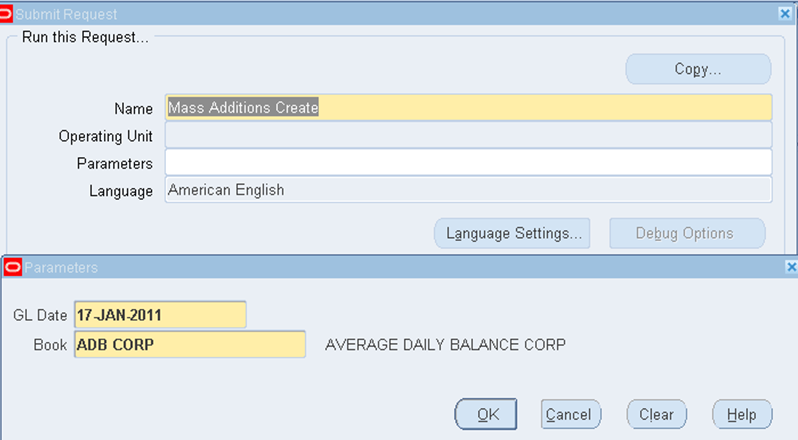
Create Mass Addition Program transfers the invoice distributions to Assets (FA) , when the option Track as Asset is enabled at invoice line level. Below screenshot shows the option to be checked if the invoice line needs to be tracked as asset.


Flow in Mass Addition:

Asset validation API is used for validating the invoice distribution lines before being loaded into
FA_MASS_ADDITIONS_GT table.


1. FA_MASS_ADDITIONS_GT populates all the records which are moved from AP to FA, data from AP_INVOICE_DISTRIBUTIONS_ALL & AP_SELF_ASSESSED_TAX_DISTRIBUTIONS are loaded when the below conditions are met:

  assets_addition_flag='U'
  assets_tracking_flag='Y'
 
once loaded into FA_MASS_ADDITIONS_GT are loaded the line_status is set to 'NEW'

2. Validation is done for the data loaded & the line_status is updated to 'PROCESSED' or 'REJECTED' processed lines are further inserted into FA_MASS_ADDITIONS for processing.


Possible reasons 

line_status REJECTED:
- a child line in NEW status whose only matching parents are in the DELETE queue in FA_MASS_ADDITIONS;
if book_type_code is null
- a parent line with natural account derived from PAYABLES_CODE_COMBINATION_ID not matching asset clearing account for
a category of a book being processed or none of asset clearing accounts of any book if book is null
- a child line with rejected parent


line_status PROCESSED:
LINE_STATUS is set to VALID and at the end of FA code to PROCESSED
- a parent ITEM / ACCRUAL line with natural account derived from PAYABLES_CODE_COMBINATION_ID matching asset
clearing account for a category of a book being processed; if the book_type_code is NULL then the code will look
for a book with matching clearing account in category setup .
- a child line of a VALID parent in FA_MASS_ADDITIONS_GT
- a child line of a parent in FA_MASS_ADDITIONS
- a child line of a parent already posted to FA in previous run


Execution Parameters :

2 mandatory parameters needed for Mass Addition Create Program is

1. Asset book type code
2. Account Date
AP will transfer to FA all the distribution lines with an accounting date lower than the Accounting Date parameter,
which also belongs to the specified FA book parameter.


Prepare Mass Additions  :
Once the data resides in FA_MASS_ADDITIONS, you must go into the Prepare Mass Additions form in Oracle Assets to enter additional information to each line in preparation for it to become an asset. You can do the following in the Prepare Mass Additions form:
  •  Enter additional source, descriptive and depreciation information.
  •  Assign the mass addition to one or more distributions, or change existing distributions in the Assignments window.
  •   Adjust the cost of a mass addition
  •   Merge a mass addition into another mass addition.
  •   Split a multiple-unit mass addition into several single-unit mass additions.
  •   Add mass addition lines to existing assets such as a cost adjustment.
After adding and/or updating your information, you then assign a mass addition queue to specify whether it is ready for posting. Only mass addition lines in the POST or COST ADJUSTMENT queue can be posted.

Post Mass Additions:
The posting process creates assets from mass addition lines in the POST queue using the data you entered. It also adds mass additions in the COST ADJUSTMENT queue to existing assets. You can run this program as often as you want during a period.

Saturday, 24 October 2015

Expense Report

Expense Report:
Expense reports are used by employee to enter and submit expense report using a standard web browser. Oracle workflow automatically routes the expense reports for approval & enforces reimbursement policy, it integrates with oracle payables to provide quick processing of the expense report for payment.
Process of Expense report

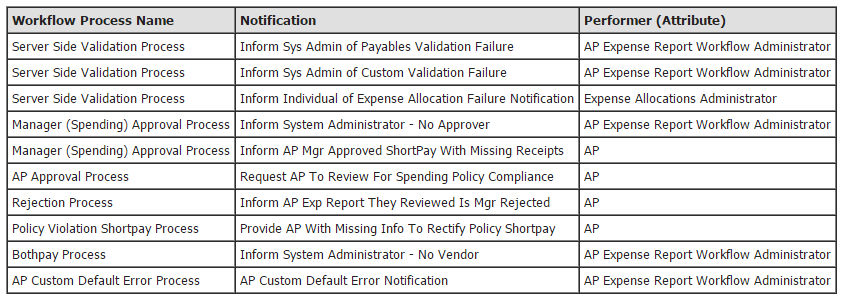
An Employee submits an expense report for approval , the expense report workflow process begins. Workflow is used to obtain manager approval & payables approval on expense reports submitted. The Manager Spending Approval process routes the expense report to managers for approval. When an expense report gets approved by a manager, the workflow sends forward the same for approval from AP Approval process.

In case of rejection of expense report by manager , the workflow go through the rejection process.

AP Approval process determines whether the expense report requires approval from payables department. If its not required, then it gets approved.

Expense report to Invoices:
Payables pays invoices only, Before an approved expense report is paid it needs to be converted into invoice. Program Oracle Expense report Export converts the expense report into invoice in payables. Expense report export program can process only those expense reports which have been approved from both manager & AP department.


Tuesday, 20 October 2015

Project Budgeting & Forecasting

Project Budgeting & Forecasting:
A budget is an estimate of the financial performance of a project, we can create budget & forecast to plan & manage the project throughout the project life cycle. We can create multiple budget & forecast for a project to model the financial impact. It can be used to track ongoing project performance by comparing the budget & forecast amount to the current actual.


First step for defining a budget is to create a project . If any budget plan version is available on the project template, then oracle projects copies the same to the newly created project . On creation of project we can create & update the work plan & then create initial budget.
Initial budget version by entering details of the new budget , we can choose the below options to create one.

·         We can generate budget amount from workplan , staffing plan , & financial plan.

·         Second option - Directly enter the budget amount  & choose to calculate the cost & revenue amount from entered quantity

·         Or we can copy the budget from another existing one for the project

There are several options for updating a budget version. we can choose an adjustment option to apply a percentage of  increasing or decreasing the quantity, raw cost rate, burden cost rate, bill rate, raw cost, burdened cost, and revenue. Or we can also directly edit the quantity, rate, cost, and revenue amounts. If budget is by time period, Oracle Projects automatically distributes the edited amounts across periods based on the spread curve associated with each planning resource. When you update the quantity, cost, revenue, or rate, Oracle Projects automatically recalculates all other amounts that are dependant on the edited amounts.

You can use the batch concurrent program PRC: Generate Financial Plan Amounts for mass budget generation. When you use the batch concurrent program, Oracle Projects obtains the default values for the budget generation source and method  from the plan settings, task, and resource. The project administrator can schedule the program to run on a regular basis for all projects or for a range of projects.

Project Forecast

Process flow for defining forecasts in oracle projects is to create baseline for the initial budget version of an approved budget plan type. Oracle project automatically creates an initial forecast version from the intial baseline of an approved budget plan are met :

  •          The forecast plan type is designated as either a primary cost or primary revenue forecast

  •          No forecast version exists for the plan type


While Oracle Projects usually creates the initial forecast from the initial baseline of an approved budget, you can choose to manually create the initial forecast or generate it from other sources. These sources include the workplan, staffing plan, work quantity, other financial plans, and actual amounts.


Forecasting feature provides project managers with a tool for detemining the amount ofcost incurred & revenue realized to date , as well as the estimated cost & revenue to be realized from the reminder of the project. A forecast consists of a combination of atual amounts and estimate to complete amount. Actual amounts are the actual effort, quantity, cost, and revenue amounts recorded for the project to date. ETC amounts represent the estimated effort, quantity, cost, and revenue amounts necessary to complete the project. You can periodically regenerate a forecast to include the latest actual amounts and redetermine the ETC amounts.

Thursday, 15 October 2015

Payables Invoice Matching

Oracle Payables shares purchase order information from your purchasing system to enable online matching with invoices. You can match Payables invoices to purchase orders to ensure that you pay only for the goods that you have ordered, or you can match to purchase order receipts to ensure that you pay only for goods that you have received.
PO  matched invoices are invoices that you match to any of the following:
  •          Purchase order shipments
  •          Purchase order receipts
  •          Purchase order receipt lines
  •          Purchase order distributions


You can set up controls in your system to require you to have a purchase order match each invoice. Also set an option on a purchase order shipment that controls whether invoices should match to that shipment directly or to a receipt. You set tolerances to specify the range of variance you will allow if the amounts or quantities on the invoice are greater than the amounts or quantities on the purchase order or receipt.
When you enter an invoice and match it, Payables automatically creates distributions and checks that the match is within the tolerance you defined previously.
After you save the match, Payables updates the quantity or amount billed for each matched shipment and its corresponding distribution based on the amount you enter in the Quantity Invoiced field. Payables also updates the amount billed on the purchase order distribution.
You can match an invoice to a purchase order in different ways:
  •      Receipt match  Matching to receipts allows you to pay only for goods or services you receive, and to pay for partial shipments without getting invoice holds. In addition, any exchange rate variance is likely to be smaller because the time between the receipt and invoice is less than the time between the purchase order and invoice. If you use one of the Periodic Costing options available in Oracle Cost Management to record costs of goods that you order, it is critical that you always match to receipts to ensure accurate cost accounting.
  •          Purchase order shipment match. Based on the Quantity Invoiced, Payables prorates the Match Amount across all nonfully billed purchase order distributions associated with the purchase order shipments you match to. Payables automatically creates invoice distributions based on the purchase order distributions.
  •          Purchase order distribution match. You can allocate the match amount to specific purchase order distributions. Payables automatically creates invoice distributions based on the purchase order distributions you match to.

You can match a single invoice to multiple PO  shipments, or you can match multiple invoices to a single PO  shipment. Payables ensures that you match only to PO for the supplier on the invoice and that the
purchase order and invoice currencies match.

Purchase orders are created for Inventory Items or Expense Items. The accounting entries created by matching invoices to PO’s will be different for Inventory Items as compared to Expense Items depending on whether you accrue expense items on receipt or at period end.